When a single client laptop runs the stage screen, the desktop, file lists, and messenger notifications appear on the big screen every time a deck is switched.
Problems that come up mid-event, like a video with no sound or speaker notes showing on stage, are also hard for one person at a laptop to fix on the spot.
A screen operator prepares the next file in advance, switches to it without the audience noticing, and handles problems as they happen.
If your event has several speakers and videos, it is safer to assign a dedicated screen operator.
With one laptop, the audience also sees everything that happens while files are being switched.
For a single speaker giving a short presentation, one laptop can be enough.
In our hybrid event cue sheet guide, we explained why the online screen plan belongs in the cue sheet.
This post covers something more basic: the stage screen itself.
The first presentation ends, and the host introduces the next speaker.
While the client's event manager closes the first deck and looks for the next file, the large screen behind the stage shows the desktop, folder icons, and a messenger notification that just came in.
Everyone in the audience can see it, but the person at the laptop often does not realize it.
Event screen operation is not just putting slides on a screen. It is getting every transition on stage past the audience without them noticing.
Below, we walk through what happens when one client laptop runs the show and what a screen operator actually does.

What goes wrong when one laptop runs the stage screen?
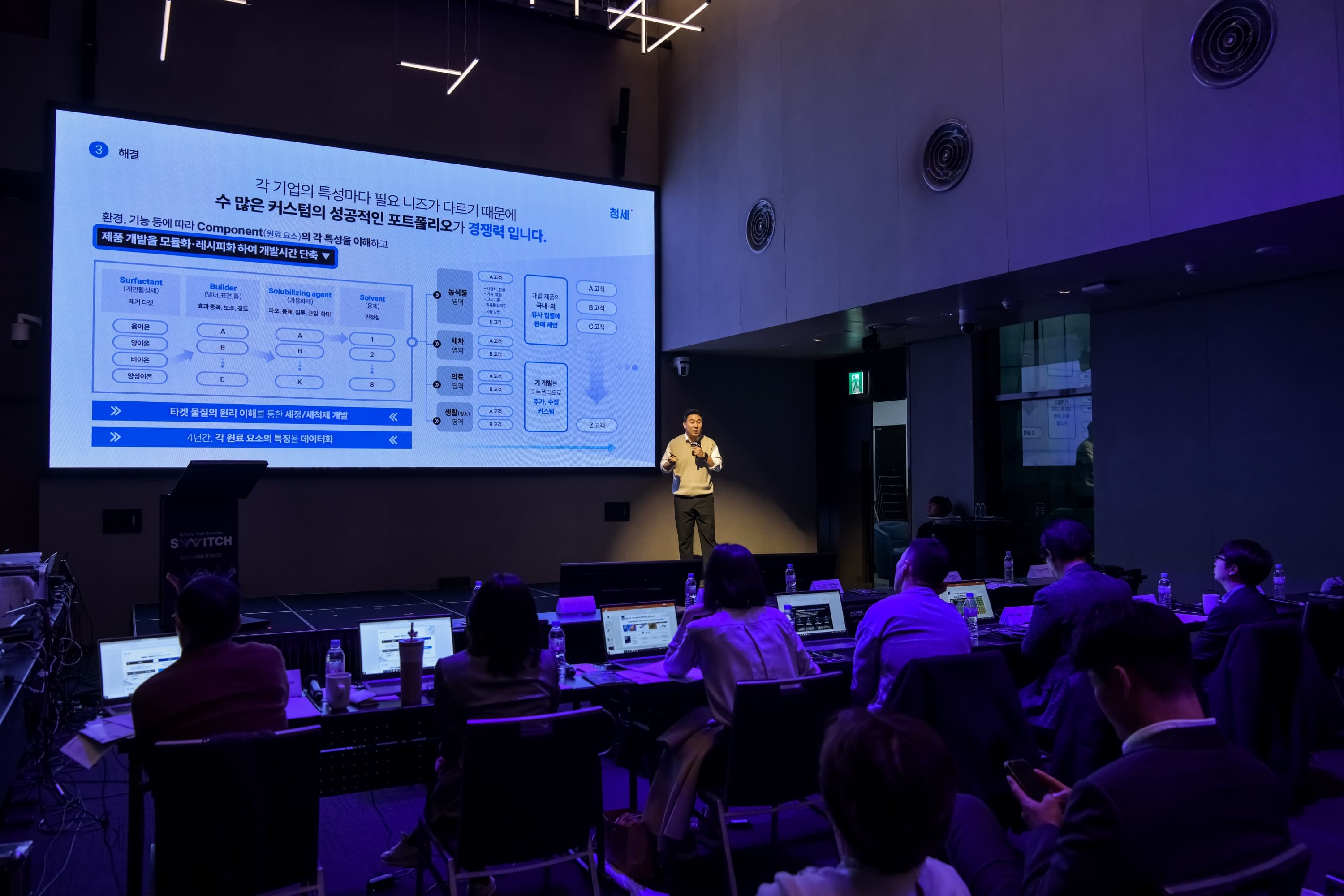
When one client laptop drives the stage screen, everything that happens on that laptop is visible to the audience.
The problems rarely come from the slides themselves. They show up between decks and at moments no one planned for.
| Situation | What appears on the stage screen | Why it happens |
|---|---|---|
| Switching decks | Desktop, file explorer, other file names | Closing and opening files on the same machine goes straight to the screen |
| Messenger and email alerts | Pop-ups and message previews | Notifications are still on, as on any work laptop |
| Presenter view switch | Speaker notes and the next slide | Display mirror or extend settings change, and the presenter view goes to the stage |
| Video playback | No sound, or sound only from the laptop speakers | The audio output is not routed to the venue sound system |
| Connecting another laptop | Cropped image, black borders, flicker | Resolution and aspect ratio are renegotiated with every connection |
| Updates and sleep | Update prompts, a screen going dark | The laptop keeps its default settings while connected for hours |
Each of these may seem small, but the stage screen is the largest screen in the room.
A desktop showing for a few seconds can easily make the event look unprepared.

Why does the desktop show when you switch presentation files?
With only one computer, there is no way to separate what is on screen now from what comes next.
While the next file is being found and opened, the stage keeps showing that computer's screen.
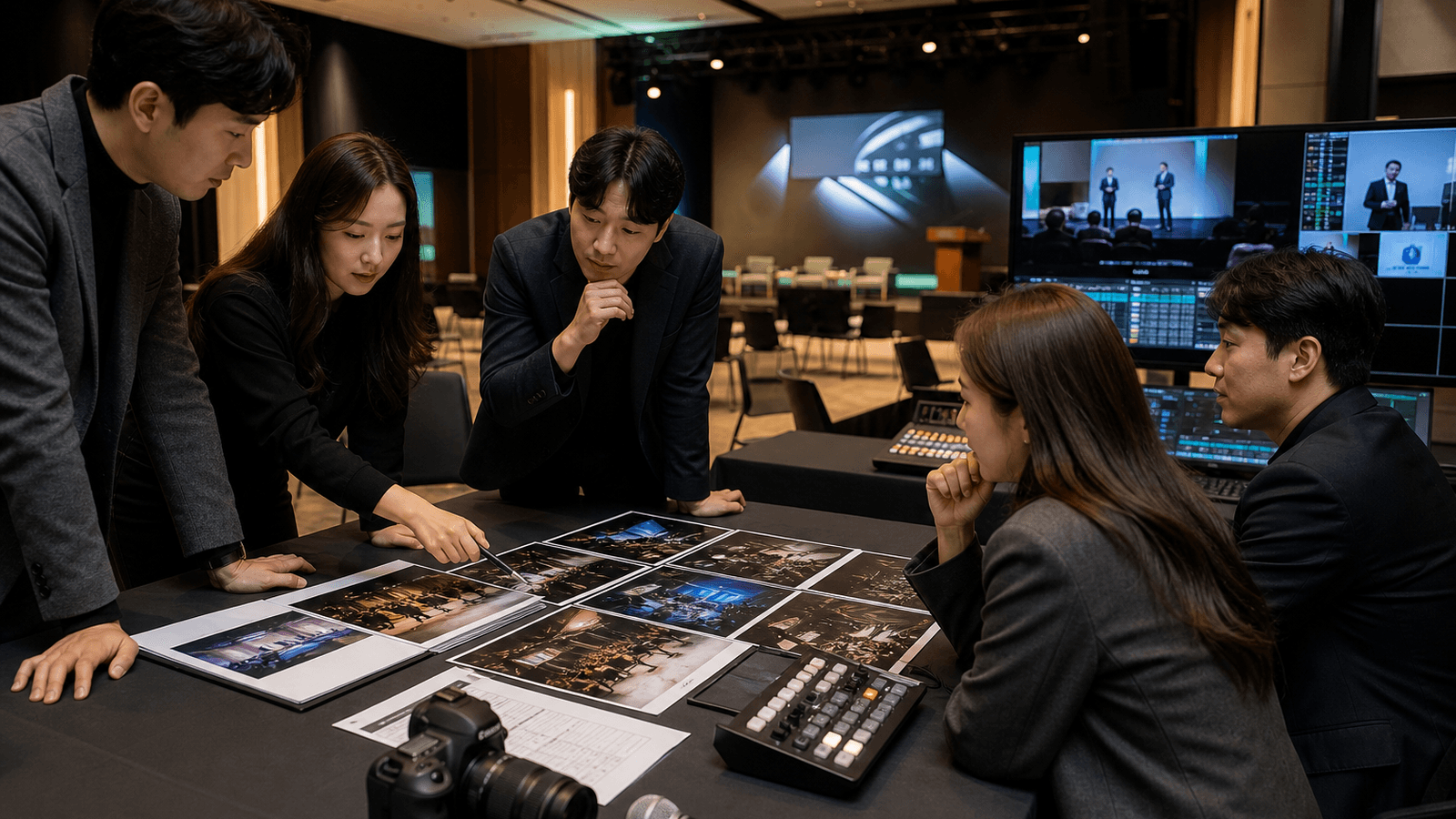
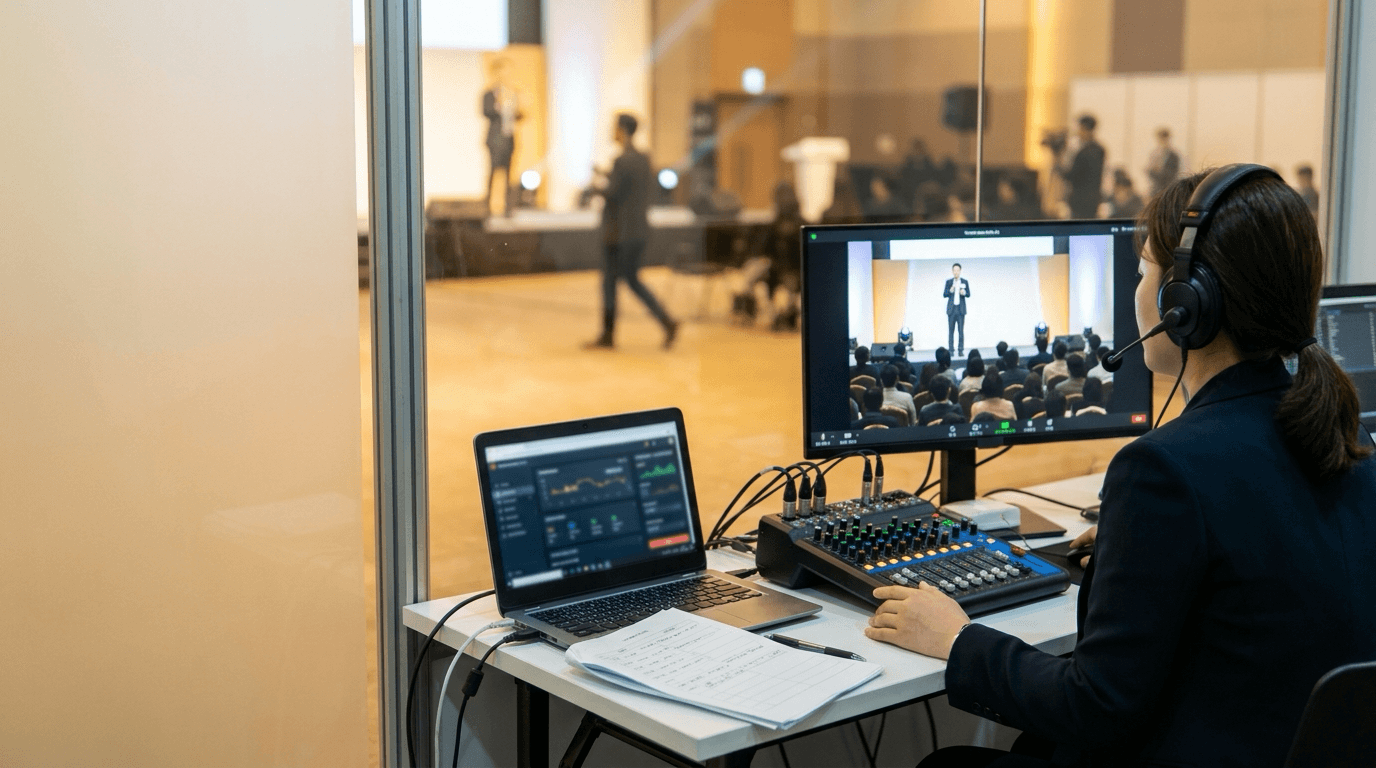
A screen operator's desk separates the two.
It keeps the live screen and the next screen apart, and switches only when the next one is fully ready.
If it is not ready yet, the operator can put up the event title or a holding screen for a moment and prepare the next deck in the meantime.
To the audience, the next presentation simply begins as soon as the previous one ends.
What happened in between is known only at the operator's desk.
What if a speaker needs to use their own laptop?
Sometimes a speaker's laptop has to be connected, for example for confidential material or a live demo.
In that case, bring the laptop into the operator's desk first, check the image and sound there, and only then send it to the stage. Plugging it straight into the stage screen is where most problems start.
Before connecting a speaker's laptop, we check:
- Is the right adapter ready for the laptop's ports?
- Do the resolution and aspect ratio match the stage screen?
- Does video audio go to the venue sound system?
- Are notifications, sleep, and automatic updates turned off?
- Is the presenter view kept off the stage screen?
If this check happens on stage right before the session, the audience watches the whole process.
Connecting the laptop once during rehearsal removes most of the surprises on the day.

What does a screen operator do during the event?
A screen operator collects and checks all materials before the event.
During the event, they switch screens in cue sheet order and step in right away when something goes wrong.
Another big difference is that the client's event manager is no longer tied to a laptop and can focus on speakers and the event floor.
| Stage | What the screen operator does |
|---|---|
| Before the event | Collects final decks, checks fonts and video playback, orders files by running order |
| Rehearsal | Checks slide advancing and clickers with each speaker, tests video sound and aspect ratio |
| During the event | Switches screens on the host's cues, runs holding screens and title slides |
| When something breaks | Advances slides from the desk if a clicker fails, swaps in a revised deck right away |
Decks change on the event day more often than you might expect.
When a revised file arrives, confirming which version is final and opening it once before it goes on stage is part of the screen operator's job.
If the event is also live streamed, the stage screen and the online program feed need to stay in sync.
As we covered in How to Choose a Corporate Event Agency, this runs far more smoothly when one team works from the same cue sheet.

When is one laptop enough?
Not every event needs a dedicated screen operator.
If there is one speaker, no video to play, and a small screen such as in an internal meeting room, one laptop can be enough.
Even then, it helps to do the following in advance:
- Turn off messenger and email notifications
- Turn off sleep and automatic updates
- Open the deck beforehand and wait on the first slide
- Put it on the stage screen once before the session starts
On the other hand, if there are several speakers, videos, or external guests and online viewers watching together, one laptop can run the event but will not run it reliably.
Judge by how many screen transitions the event has, not by how big it is.
FAQ
Do we really need a separate screen operator?
If there are several speakers, or the program includes videos and holding screens, a separate operator is the safer choice. For a single speaker giving a short presentation, one laptop can be enough.
What if a speaker wants to present from their own laptop?
That is possible. It is better to bring the laptop into the operator's desk first and check the image and sound before sending it to the stage, rather than plugging it straight into the stage screen. We also recommend connecting it once during rehearsal.
What should we check in advance if a presentation includes video?
During rehearsal, check that the video actually plays on the operating computer and that its sound goes to the venue sound system. Videos played from a web link can stutter depending on the venue's internet connection, so it is better to have the file itself.
What happens if a deck changes on the event day?
The screen operator receives the revised file, confirms it is the final version, and opens it once before it goes on stage. Adding a version number to file names makes it easy to tell which one is final.
Who handles screen operation when the event is also live streamed?
The stage screen and the online program feed move together, so it works best when one team runs both from the same cue sheet. If the work is split between teams, agree in advance on who gives the cue for each screen change.
How MOTIONSENSE approaches the stage screen
MOTIONSENSE is a team that handles event operations, live streaming, and event video together.
That is why we do not treat the stage screen as just a device for showing slides. We line it up with the host's script, the running order, and the online program feed as one flow.
When we take on event production, screen operation is prepared as part of on-site operations.
We have handled on-site operations and live streaming together for corporate and institutional events such as KAIST KSTP Forum, Shinhan Future's Lab, IBK corporate conferences, and Save the Children parliamentary forums.
A good event screen gets through every transition without anyone noticing there was one.
In the next post, we will cover how to prepare holding screens and looping videos for events.
If you need screen operation for your event, feel free to contact us.