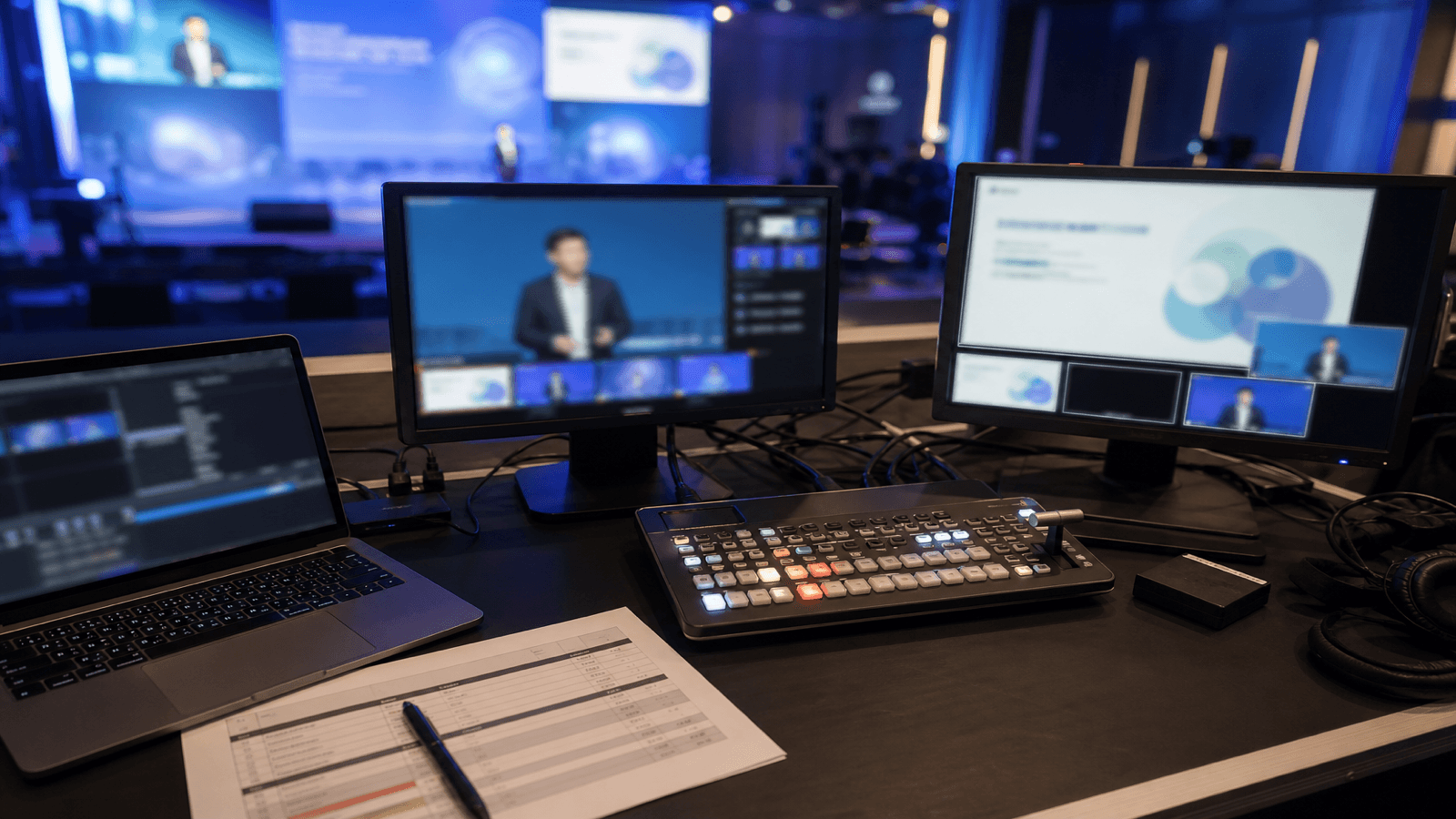
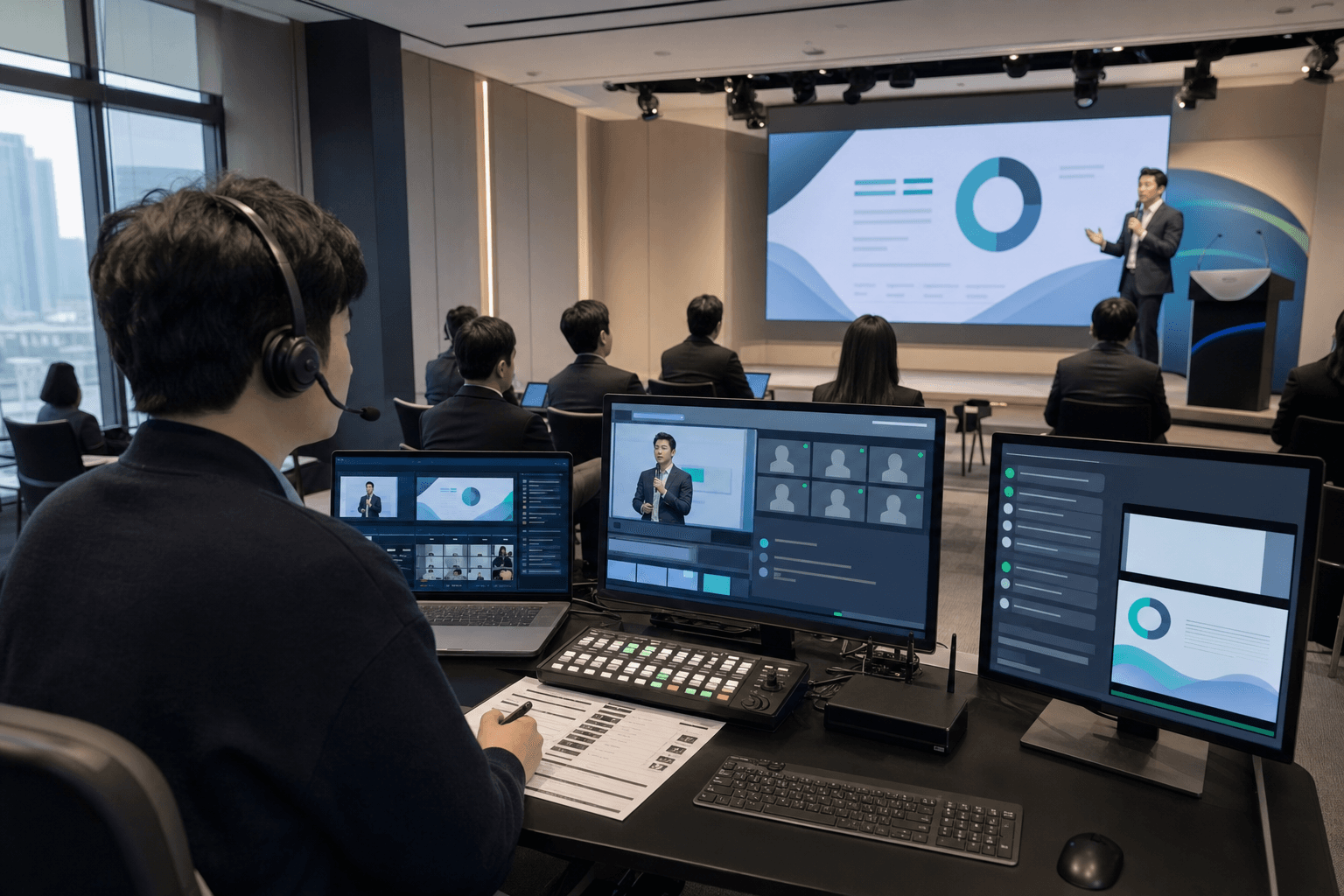
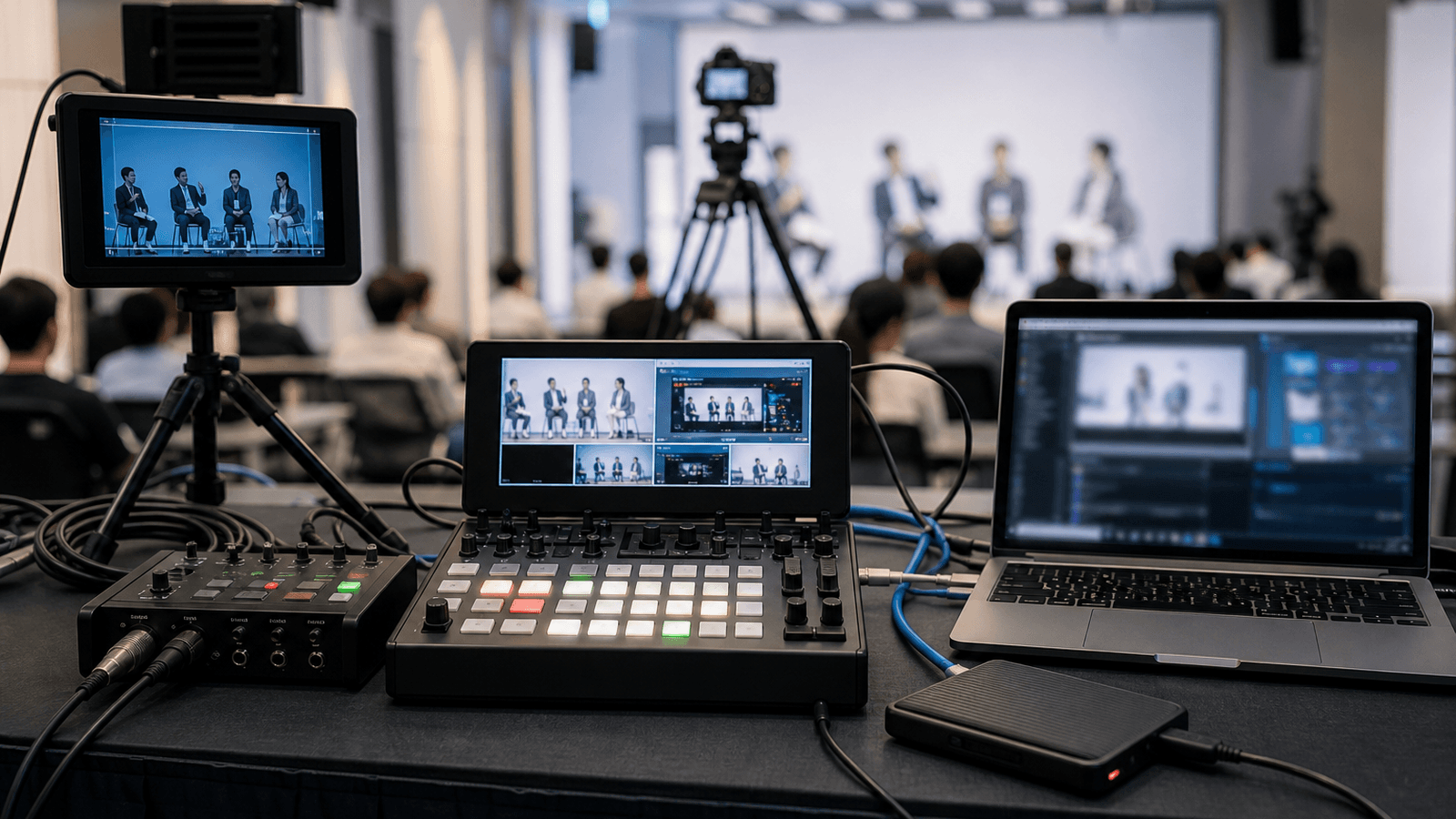
Ten minutes before the event, the host picks up a microphone for a sound check. Their voice is clear, even at the back of the room. The presentation video also plays through the venue speakers without a problem. But a colleague watching on Zoom says, “I can hear the host, but there’s no sound from the video.”
Turning up the volume may seem like the obvious fix. First, though, it helps to check which audio sources are actually reaching Zoom. Sound coming through the venue speakers does not automatically reach online attendees. For a reliable Zoom or hybrid event, the sound sent to the room and the sound sent online both need to be checked.
If it sounds fine in the room, will it sound fine on Zoom?
In the venue, the host’s microphone, the presenter’s microphone, and video playback from a laptop are usually brought together through the audio system and sent to the speakers. For Zoom attendees to hear them too, each source also needs a working path into Zoom.
If only the host’s microphone is reaching Zoom, the live presentation may sound fine while a video plays in silence. In another setup, the video may suddenly be much louder than the presenter’s voice.
When you ask whether the microphones have been tested, it is worth checking every sound the online audience needs to hear at each point in the program. The host’s introduction, a presentation, video playback, a question from the room, and a remote speaker’s answer may all come from different sources.
What happens when a remote speaker’s voice is sent back to Zoom?
When a speaker joins remotely through Zoom, audio needs to travel in both directions. The room needs to hear the speaker, and the speaker needs to hear questions from the host on site. Online attendees need to hear both sides of the conversation.
If the incoming voice from Zoom is simply fed back into Zoom, the remote speaker may hear a delayed version of their own voice or an echo. A laptop microphone placed near the venue speakers can also pick up their sound and send it back.
The audio team therefore checks more than speaker volume. They separate what needs to go to the venue from what needs to go to Zoom, making sure the audio arriving from Zoom is not sent straight back. The right setup depends on the event format, so it helps to know the number of on-site microphones, whether videos will be played, and whether speakers will join remotely.
During rehearsal, ask someone to listen as a Zoom attendee

Listening at the audio desk alone does not tell you what the online audience is hearing. During rehearsal, have someone join Zoom as an attendee on a computer separate from the one running the event. Ask them to listen for each of the following:
- Are the host’s and presenter’s voices both clear?
- Can they hear the audio from videos or music in the presentation?
- Can the remote speaker hear questions asked in the room?
- Can people in the room and online both hear the remote speaker’s answers?
- Does the volume change suddenly when you switch screens or play a video?
“The host sounds fine, but the video is too quiet” is much more useful feedback than simply “I can hear it.” It also helps to rehearse with the actual laptops, microphones, and final video files that will be used on the day. That reduces the risk of a test file working perfectly while the event video is missing its audio.
What should you tell your production team?
If you are planning a Zoom webinar or hybrid event, the following details can be just as useful as the room size or camera count. They help the team work out which sounds need to reach which participants:
- How many microphones will be used by the host, presenters, and audience members?
- Will any speakers or panelists join through Zoom?
- Will the program include video or music playback?
- Do people in the room and online need to ask each other questions?
- Which audio sources need to be included in the recording?
Attendees may still be able to follow an event when the picture briefly becomes less clear. If they cannot hear the presenter or a question, they lose the thread immediately. Alongside the screen layout, it is important to check what online attendees will hear from the beginning to the end of the event.
At MOTIONSENSE, we join Zoom during rehearsal to check the sound directly. We listen to the host and presenter microphones, video playback, on-site questions, and remote speaker responses in program order. This helps us find and adjust sections where audio is clear in the venue but missing online, or where a voice is being sent back as an echo. A thorough Zoom rehearsal helps identify and prevent audio problems before the event starts.
If your event needs people in the room and online to speak with one another, start by sharing the program flow and how each group will participate. Explore our live streaming production services, then include the running order and remote participation format in your production inquiry so we can review the setup with you.
If you are still choosing a platform, our Zoom Webinar vs YouTube Live guide may also help.
FAQ
What should we do if Zoom attendees can't hear the presentation video at a hybrid event?
First check whether the video audio has a path into Zoom. Sound from the venue speakers does not reach Zoom automatically. If only the host's microphone is connected to Zoom, the presentation may sound fine while the video plays in silence.
Why does a remote speaker on Zoom hear their own voice as an echo?
If the speaker's voice coming in from Zoom is sent straight back into Zoom, they may hear a delayed version of their own voice or an echo. A laptop microphone placed near the venue speakers can also pick up that sound and send it back. The audio for the room and the audio for Zoom need to be routed separately.
How do we check what online attendees hear during a Zoom event rehearsal?
Have someone join Zoom as a regular attendee on a computer separate from the one running the event, and ask them to listen for each source in turn. Check the host's and presenter's voices, the presentation video audio, questions from the room and the remote speaker's answers, and any sudden volume changes when screens switch. It also helps to play the final video files on the laptops and microphones you will use on the day.
What should we tell the production team before booking a Zoom event livestream?
Tell them how many microphones the host, presenters, and audience will use, whether any speakers or panelists will join through Zoom, and whether the program includes video or music playback. Also mention whether people in the room and online need to ask each other questions, and which sounds should be in the recording. This makes it easier to decide which audio goes where.